
Pinning estateXchange to your taskbar
estateXchange runs in your browser, so there is nothing to install. You can still make it behave like an app by pinning a shortcut to your taskbar, then opening estateXchange from that shortcut in future.
Pin a shortcut
Microsoft Edge
- 1
Open estateXchange in Microsoft Edge.
- 2
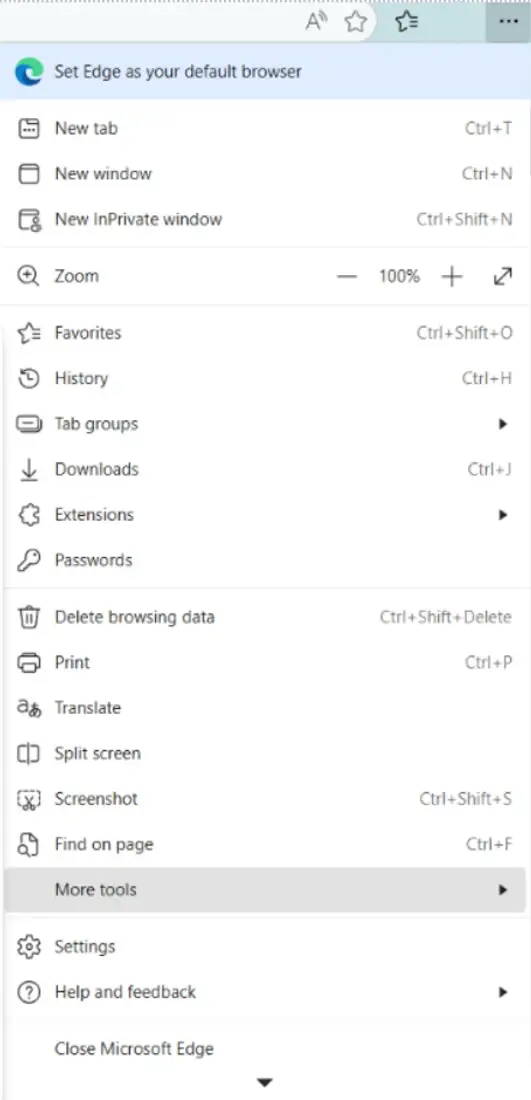
Open the 'Settings and more' menu, shown as three dots in the top right of the browser.
- 3
Select 'More tools', then 'Pin to taskbar'.
- 4
Select 'Yes' to pin estateXchange to your taskbar.
Google Chrome
- 1
Open estateXchange in Google Chrome.
- 2
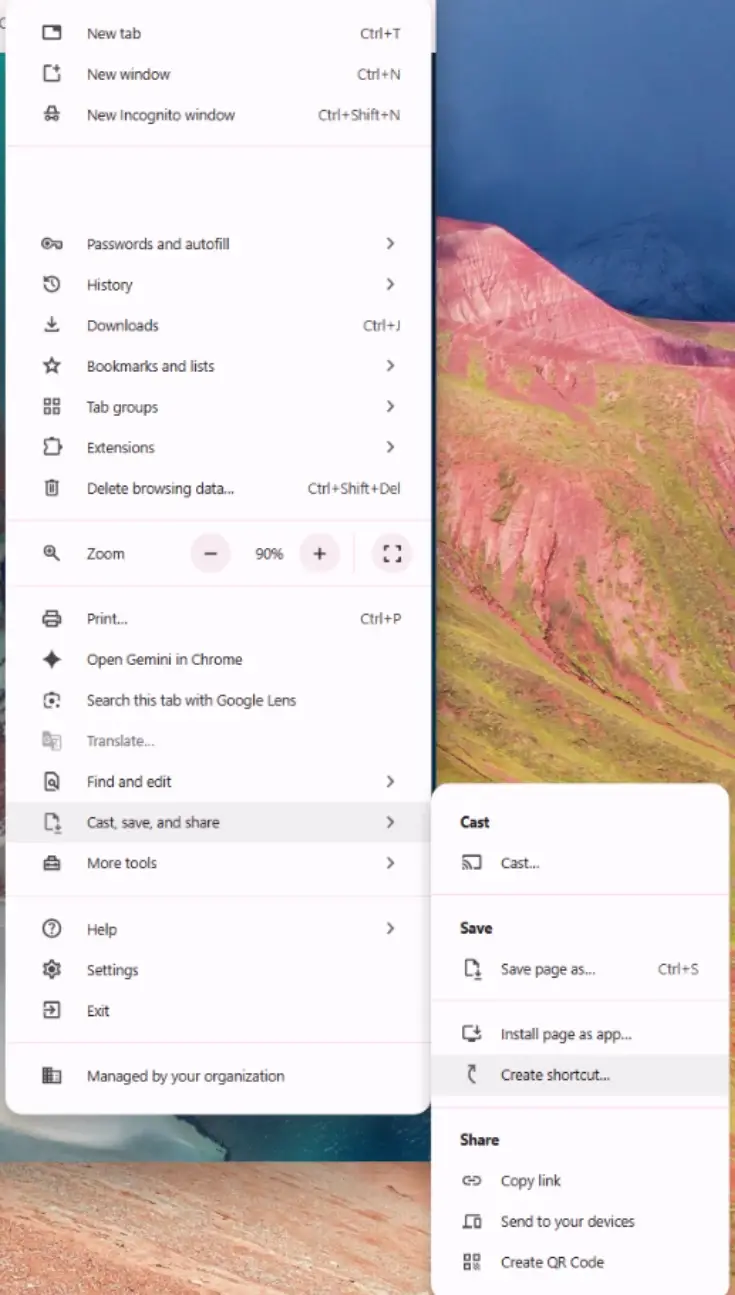
Open the 'More' menu, shown as three dots in the top right of the browser.
- 3
Select 'Cast, save, and share', then 'Create shortcut'.
- 4
Select 'Create' to save the shortcut. A File Explorer window should open showing the file.
- 5
Drag the file to your Windows taskbar.
Additional support
Menu names and positions vary between browser versions, so what you see may differ slightly from the screenshots above.
If you have questions or run into any issues, please get in touch.